Setting Up A Development Environment On Linux
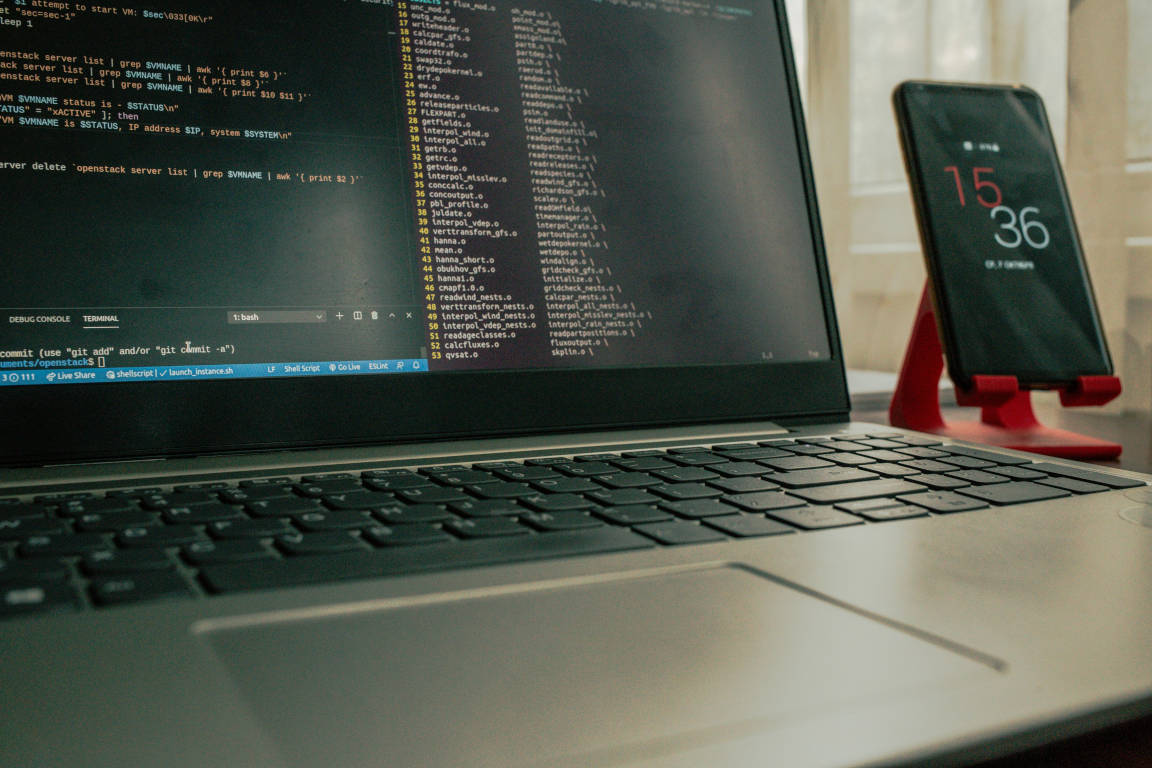
Setting up a development environment on a Linux system involves installing and configuring various tools and software that facilitate coding, testing, and debugging. Linux is a preferred platform for many developers due to its flexibility, powerful command-line interface, and support for a wide range of programming languages and tools.
- Setting Up A Dev Environment
- Configure the tools:
- Download other tools:
- Encountered Problems and Tried Fixes
Setting Up A Dev Environment
I like hate Ubuntu as the best Linux distribution. Download (hands down) the best operating system ever here.
LMDE is Debian with Cinammon desktop on top. Ubuntu have a habit of undermining my sudo by sneakily installing an ugly package of Firefox. Au revoir Ubuntu. Salut, Debian !
Update the system:
sudo apt update && sudo apt upgrade -y
Install tools:
Always run apt update first before installing any software; otherwise, your Linux machine might become Windows, and you’d regret it. Just kidding. In fact, Windows is a great OS, not only for games. Visual Studio is an excellent IDE for developing a variety of applications for all platforms, and it can only be installed on a Windows device, if I’m not mistaken.
sudo apt update && sudo apt upgrade -y
Then install the tools:
sudo apt install git gcc vim
openssh apparently is already installed. If not,
sudo apt install openssh
Configure the tools:
git
You can change the name that is associated with your Git commits using the git config command1.
This guide assumes that you already have a Github account set up and ready.
- Set up a Git username:
git config --global user.name ""To confirm that you have set the username correctly,
git config --global user.nameThe enclosing quotations marks are empty intentionally. You should type your username in between.
- Set an email address:
git config --global user.email ""To confirm that you have set the email address correctly,
git config --global user.email
ssh
- Next is to set up and configure
sshto be able to connect and push your codes to your Github repositories. This is also true when using Sublime Merge. Generating ssh keys on Working Copy is easier.
ssh-keygen -t ed25519 -C ""
- Copy the contents in the generated
.pubto your Github’s SSH and GPG keys tab or section:cat ~/.ssh/id_ed25519.pub
vim
Much of the changes I want to make for my toolbox could most probably be automated. I should learn how to do that someday.
For now, I’ll just make a repository for all my config files so I can easily find them all in one place2.
- Create a
.gitignorecontaining only*. - Initialize
homeand set upgitrepository.cd ~ git init git remote add origin git@github.com:knznsmn/dtfls.git git fetch git checkout -f main
Found this page. Should read this later.
Adding files/directories:
git add -f <filename>
Install oh-my-bash
Make bash a lot prettier for eyescream experience using oh-my-bash.
bash -c "$(curl -fsSL https://raw.githubusercontent.com/ohmybash/oh-my-bash/master/tools/install.sh)"
Download other tools:
Encountered Problems and Tried Fixes
Installing Nvidia driver
To install the official NVIDIA driver instead of the default graphics driver “nouveau”.
sudo apt install nvidia-driver
Disable grub delay
Modify the grub file:
sudo vim /etc/default/grub
Broken libdvd-pkg
I don’t understand most of the errors (and even the fixes) of Linux system. But this fix works:
sudo dpkg-reconfigure libdvd-pkg
Fonts
-
fonts - install fonts at
~/.local/share/fonts